The Brady Android Print SDK
Android Prerequisites
- Must set minSdkVersion in build.gradle to 26 or above.
- Add the Brady SDK dependency to your app-level build.gradle in Android Studio.
implementation 'com.bradyid:BradySdk:3.3.0'
- In app/build.gradle you must also set "minifyEnabled" to false inside the buildType block as such:
buildTypes {
    release {
        //Set minifyEnabled to false OR you may remove this line entirely which will also disable
        //minifying. This will make sure the SDK doesn't lose any of the classes it needs during
        //optimization while compiling.
        minifyEnabled false
        ...
        ...
    }
    debug {
        minifyEnabled false
        ...
        ...
    }
}
- If you are not using Android Studio, find alternative methods here: https://central.sonatype.com/artifact/com.bradyid/BradySdk
- Within the "Snippets" box on the "Overview" page, you may select the dropdown menu to see other supported dependencies.
- It is also suggested to use the most updated version of the SDK. Ensure that your version is the most recent version using the same link above.
Versions >=1.7.0
Custom Brady fonts are no longer embedded in the Android SDK. Therefore, they must be downloaded here.
The custom Brady fonts only need to be downloaded and embedded into your application if the BWT files being used by your application were designed with any of these fonts. To embed them in your Android application:
- Create a Resource Folder called "fonts" in your application's "res" directory.
- Drag and drop the desired fonts into the new Resource Folder.
- After initializing a Template object in your code, add the following:
int[] fontList = new int[]{R.font.brady_fixed_width, R.font.brady_fixed_width_bold, R.font.brady_alpine, R.font.brady_alpine_bold};
template.storeFonts(this, fontList);
Printer Discovery
Before starting this tutorial, it is important to note that the SDK was not designed to discover, connect, print, and disconnect all at once. The printer itself will still struggle to receive and send data this quickly.
Example: It is not recommended to design an app with a single button labeled "Print" where the app would discover, connect, print, and then disconnect on the button click.
Requesting Permissions
Request all necessary permissions using a dynamic, modular approach:
private void requestAllPermissions() {
    List<String> permissionsToRequest = new ArrayList<>();

    if (ContextCompat.checkSelfPermission(this, Manifest.permission.ACCESS_FINE_LOCATION) != PackageManager.PERMISSION_GRANTED) {
        permissionsToRequest.add(Manifest.permission.ACCESS_FINE_LOCATION);
    }

    if (Build.VERSION.SDK_INT >= Build.VERSION_CODES.S) {
        if (ContextCompat.checkSelfPermission(this, Manifest.permission.BLUETOOTH_CONNECT) != PackageManager.PERMISSION_GRANTED) {
            permissionsToRequest.add(Manifest.permission.BLUETOOTH_CONNECT);
        }
        if (ContextCompat.checkSelfPermission(this, Manifest.permission.BLUETOOTH_SCAN) != PackageManager.PERMISSION_GRANTED) {
            permissionsToRequest.add(Manifest.permission.BLUETOOTH_SCAN);
        }
    } else {
        if (ContextCompat.checkSelfPermission(this, Manifest.permission.ACCESS_COARSE_LOCATION) != PackageManager.PERMISSION_GRANTED) {
            permissionsToRequest.add(Manifest.permission.ACCESS_COARSE_LOCATION);
        }
        if (ContextCompat.checkSelfPermission(this, Manifest.permission.BLUETOOTH) != PackageManager.PERMISSION_GRANTED) {
            permissionsToRequest.add(Manifest.permission.BLUETOOTH);
        }
    }

    if (Build.VERSION.SDK_INT >= Build.VERSION_CODES.TIRAMISU) {
        if (ContextCompat.checkSelfPermission(this, Manifest.permission.NEARBY_WIFI_DEVICES) != PackageManager.PERMISSION_GRANTED) {
            permissionsToRequest.add(Manifest.permission.NEARBY_WIFI_DEVICES);
        }
    }

    if (!permissionsToRequest.isEmpty()) {
        ActivityCompat.requestPermissions(this, permissionsToRequest.toArray(new String[0]), 0);
    }
}
Key points:
- Android 12+ (Build.VERSION_CODES.S) requires
BLUETOOTH_CONNECTandBLUETOOTH_SCAN - Android 13+ (Build.VERSION_CODES.TIRAMISU) adds
NEARBY_WIFI_DEVICESfor Wi-Fi discovery - Pre-Android 12 requires
ACCESS_COARSE_LOCATIONandBLUETOOTH - Always request
ACCESS_FINE_LOCATIONfor BLE and Wi-Fi discovery
Implementing Discovery
Create a PrinterDiscovery object in a dedicated setup method to handle initialization and auto-connection:
public void setupPrinterDiscovery() {
    try {
        List<PrinterDiscoveryListener> printerDiscoveryListeners = new ArrayList<>();
        printerDiscoveryListeners.add(this);
        printerDiscovery = PrinterDiscoveryFactory.getPrinterDiscovery(
            context.getApplicationContext(),
            printerDiscoveryListeners
        );

        // Attempt to reconnect to the last connected printer
        DiscoveredPrinterInformation lastConnectedPrinter = printerDiscovery.getLastConnectedPrinter();
        if (lastConnectedPrinter != null && !lastConnectedPrinter.getName().isEmpty()) {
            try {
                connectToPrinter(lastConnectedPrinter, (PrinterUpdateListener) context, true);
            }
            catch(Exception e) {
                showToast("Make sure the printer is on and in range!");
            }
        } else {
            // Start discovery if no last connected printer
            printerDiscovery.startBlePrinterDiscovery();
            printerDiscovery.startWifiPrinterDiscovery();
            // Note: Do NOT call startBluetoothPrinterDiscovery() due to M611 Latimer firmware bug
        }
    } catch (Exception e) {
        System.out.println(e.getMessage());
    }
}
Discovery Methods:
Start discovering nearby printers:
- BLE Discovery:
printerDiscovery.startBlePrinterDiscovery() - Wi-Fi Discovery:
printerDiscovery.startWifiPrinterDiscovery() - Classic Bluetooth:
printerDiscovery.startBluetoothPrinterDiscovery(false)— parameter true = paired only, false = paired + nearby
Stop all discovery:
printerDiscovery.stopPrinterDiscovery()
⚠️ IMPORTANT: M611 Latimer Issue
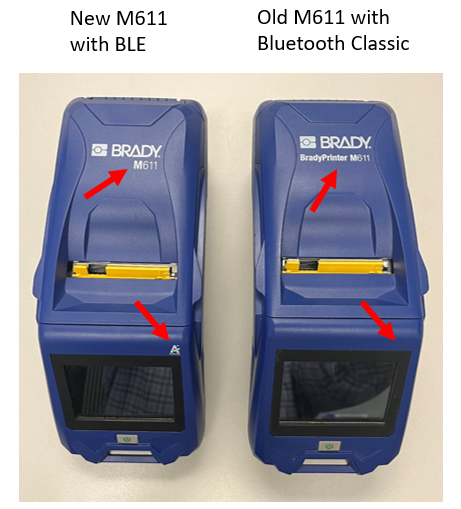
Do NOT call startBluetoothPrinterDiscovery() if M611 printers are used. The M611 firmware has a bug where it may be discovered as Bluetooth Classic even though it only supports BLE. M611 models purchased after March 2023 are likely M611 Latimer variants. This can be tested by downloading the Brady Express Labels application and attempting to connect to it via Bluetooth Low Energy or use the following chart to identify this discrepancy:
Implementing PrinterDiscoveryListener
Implement the PrinterDiscoveryListener interface in your presenter or activity class:
public class MainPresenter implements PrinterDiscoveryListener {
    // ...

    @Override
    public void printerDiscovered(DiscoveredPrinterInformation discoveredPrinterInformation) {
        if (printerDoesNotExist(discoveredPrinterInformation)) {
            foundPrinters.add(discoveredPrinterInformation);
        }
    }

    @Override
    public void printerRemoved(DiscoveredPrinterInformation discoveredPrinterInformation) {
        foundPrinters.remove(discoveredPrinterInformation);
    }

    @Override
    public void printerDiscoveryStarted() {
        Log.i("Discovery Started", "The Printer Discovery scan was started!");
    }

    @Override
    public void printerDiscoveryStopped() {
        Log.i("Discovery Stopped", "The Printer Discovery scan was stopped!");
    }

    private boolean printerDoesNotExist(DiscoveredPrinterInformation discoveredPrinter) {
        for (DiscoveredPrinterInformation printer : foundPrinters) {
            if (printer != null && printer.getName().equals(discoveredPrinter.getName())) {
                // Verify same connection type (BLE, Bluetooth, or Wi-Fi)
                if (printer.getClass().equals(discoveredPrinter.getClass())) {
                    return false; // Printer already exists
                }
            }
        }
        return true; // Printer is new
    }
}
Key callback methods:
- printerDiscovered(): Called when a printer is found
- printerRemoved(): Called when a printer goes out of range or disconnects
- printerDiscoveryStarted(): Called when the discovery scan begins
- printerDiscoveryStopped(): Called when the discovery scan ends
Printer Connection
Connecting to a Printer
The connectToDiscoveredPrinter() method attempts to connect to a discovered printer and returns a PrinterDetails object.
public void connectToPrinter(DiscoveredPrinterInformation printerSelected, PrinterUpdateListener pul, boolean showDetailPage) {
    Runnable r = () -> {
        try {
            // Show progress during connection
            if (printerSelected != null && printerSelected.getName() != null) {
                showProgress("Connecting to " + printerSelected.getName() + "...");
            }

            // Attempt connection on background thread
            printerDetails = printerDiscovery.connectToDiscoveredPrinter(
                context,
                printerSelected,
                Collections.singletonList(pul)
            );

            // Check for ownership issues (M211 printers)
            if (printerDiscovery.getHaveOwnership() != null) {
                if (printerDetails == null && !printerDiscovery.getHaveOwnership()) {
                    showToast("Hold Power Button To Reclaim Ownership!");
                } else if (printerDetails == null) {
                    showToast("You must properly disconnect from your previous printer.");
                }
            }

            if (printerDetails != null) {
                showToast(printerDetails.getPrinterStatusMessage());
                stopDiscovery();
                setPrinterDetails(printerDetails, showDetailPage);
            } else {
                handleConnectionFailure();
            }
        }
        catch(Exception e) {
            handleConnectionFailure();
        }
        hideProgress();
    };
    Thread connectThread = new Thread(r);
    connectThread.start();
}

private void handleConnectionFailure() {
    showToast("Connection failed. Please ensure the printer is turned on.");
    // Restart discovery if connection failed
    printerDiscovery.startBlePrinterDiscovery();
    printerDiscovery.startWifiPrinterDiscovery();
}
Key Parameters:
- context: The application context (required by the SDK)
- printerSelected: The
DiscoveredPrinterInformationobject to connect to - pul: A list of
PrinterUpdateListenerobjects to receive status updates - showDetailPage: Boolean to show the printer details page after connection
Important Notes:
- Always run connection on a background thread to avoid blocking the UI
- Check for M211 ownership issues using
printerDiscovery.getHaveOwnership() - Restart discovery if connection fails
- The returned
PrinterDetailscontains printer info (name, model, battery, supply, etc.)
OWNERSHIP NOTE: Using an M211 introduces the concept of "ownership". When connecting to an M211 with a mobile device for the first time, the blue light on the M211 should be blinking. If the light is solid blue, another mobile device "owns" the printer and only that device will be able to connect. In the event that a connection fails, a device can still have "ownership". Therefore, being connected and having ownership are not synonymous. To connect using a different mobile device, hold the power button for five seconds to release ownership.
Automatic Connection
Attempt to reconnect to the last connected printer on app startup:
// In setupPrinterDiscovery():
DiscoveredPrinterInformation lastConnectedPrinter = printerDiscovery.getLastConnectedPrinter();
if (lastConnectedPrinter != null && !lastConnectedPrinter.getName().isEmpty()) {
    try {
        connectToPrinter(lastConnectedPrinter, (PrinterUpdateListener) context, true);
    }
    catch(Exception e) {
        showToast("Make sure the printer is on and in range!");
    }
} else {
    // Start discovery if no previous connection
    printerDiscovery.startBlePrinterDiscovery();
    printerDiscovery.startWifiPrinterDiscovery();
}
Forgetting a Printer:
To stop auto-connecting to a printer, forget it:
printerDiscovery.forgetLastConnectedPrinter();
This will erase the stored connection and prevent automatic reconnection on subsequent app launches.
Disconnecting from a Printer
public void disconnectFromPrinter() {
    if(printerDetails != null) {
        printerDetails.disconnect();
        try {
            printerDiscovery.forgetLastConnectedPrinter();
            // Restart discovery for new connections
            printerDiscovery.startBlePrinterDiscovery();
            printerDiscovery.startWifiPrinterDiscovery();
            // Update UI to show disconnected state
            hideConnectionError();
            clearPrinterDetails();
        }
        catch (Exception e) {
            System.out.println(e.getMessage());
        }
    }
}
After disconnecting, always restart the discovery scan to allow the user to connect to a different printer.
Performing Printer Operations
Basic Operations (M211 & M511):
public void cutLabel() {
    if (printerDetails != null) {
        printerDetails.cutSupply();
    }
}

public void feed() {
    if (printerDetails != null) {
        printerDetails.feedSupply();
    }
}

public void setAutomaticShutdown(int timeInMinutes) {
    if (printerDetails != null) {
        try {
            printerDetails.setAutomaticShutdownTime(timeInMinutes);
            System.out.println(printerDetails.getAutomaticShutdownTime());
        } catch (Exception e) {
            showToast(e.getMessage());
        }
    }
}
Inkjet Specific Operations:
Clean Printhead:
public void cleanPrinthead() {
    if (printerDetails != null) {
        try {
            boolean result = printerDetails.cleanPrinthead();
            if (result) {
                showToast("Clean Printhead Successful!");
            } else {
                showToast("Clean Printhead Failed!");
            }
        } catch (Exception e) {
            showToast(e.getMessage());
        }
    }
}
Reset Maintenance Station:
public void setMaintenanceStationReset() {
    if (printerDetails != null) {
        try {
            boolean result = printerDetails.setMaintenanceStationProperty(MaintenanceStation.Reset);
            if (result) {
                showToast("Maintenance Reset Successful!");
            } else {
                showToast("Maintenance Reset Failed!");
            }
        } catch (Exception e) {
            showToast(e.getMessage());
        }
    }
}
Print Alignment Label:
public void printAlignmentLabel() {
    if (printerDetails != null) {
        try {
            boolean result = printerDetails.printAlignmentLabel();
            if (result) {
                showToast("Print Alignment Label Successful!");
            } else {
                showToast("Print Alignment Label Failed!");
            }
        } catch (Exception e) {
            showToast(e.getMessage());
        }
    }
}
Set Alignment Offset:
public void setAlignmentOffset(int offset) {
    if (printerDetails != null) {
        try {
            boolean result = printerDetails.setAlignmentOffset(offset);
            if (result) {
                showToast("Set Alignment Offset Successful!");
            } else {
                showToast("Set Alignment Offset Failed!");
            }
        } catch (Exception e) {
            showToast(e.getMessage());
        }
    }
}
Set Quality Mode:
public void setPrinterQualityMode(PrintMode mode) {
    if (printerDetails != null) {
        try {
            printerDetails.setPrinterQualityMode(mode);
            showToast("Set Quality Mode to " + mode);
        } catch (Exception e) {
            showToast(e.getMessage());
        }
    }
}
Monitoring Printer Status Changes
Implement PrinterUpdateListener to receive real-time printer status updates:
public class MainActivity extends AppCompatActivity implements MainInterface, PrinterUpdateListener {
    @Override
    public void PrinterUpdate(List<PrinterProperties> list) {
        for(PrinterProperties property : list) {
            if(property == PrinterProperties.CurrentStatus) {
                String statusMessage = printerDetails.getPrinterStatusMessage();
                if(statusMessage.equals("PrinterStatus_Disconnected")) {
                    // Handle unexpected disconnect
                    hideConnectionError();
                    clearPrinterDetails();
                    // Restart discovery for reconnection
                    presenter.setupPrinterDiscovery();
                }
            }
        }
    }
}
Connect/Disconnect Scenarios
Scenario #1 — Unexpected Disconnect:
If a connected printer disconnects unexpectedly (power off, out of range), the SDK sends a CurrentStatus update:
if(property == PrinterProperties.CurrentStatus) {
    if(printerDetails.getPrinterStatusMessage().equals("PrinterStatus_Disconnected")) {
        // Clear printer details and restart discovery
        printerDetails = null;
        printerDiscovery.startBlePrinterDiscovery();
        printerDiscovery.startWifiPrinterDiscovery();
    }
}
Scenario #2 — First-Time vs. Reconnection:
When connecting, the SDK caches the connection. If the app closes:
- First app launch after connection: Call
connectToPrinter()normally - Same session reconnect:
printerDetailsis still valid; just callconnectToPrinter()again - New app launch: Call
getLastConnectedPrinter()to try auto-reconnect; if null, start discovery
Scenario #3 — M211 Ownership:
When connecting to an M211:
- Solid blue light: Another device owns the printer; hold power button 5 seconds to release
- Blinking blue light: Printer is ready to be owned
- Check ownership:
printerDiscovery.getHaveOwnership()
if (printerDiscovery.getHaveOwnership() != null && !printerDiscovery.getHaveOwnership()) {
    showToast("Hold Power Button To Reclaim Ownership!");
}
Opening Templates
Before adding code, create a subdirectory called raw within your app's res directory to place template files (.BWT).
Initializing a Template Object
private void getAllTemplateNames(){
    try {
        // Use reflection to iterate through R.raw resources
        for(Field field : R.raw.class.getFields()) {
            int resId = getResources().getIdentifier(field.getName(), "raw", getPackageName());
            if (resId != 0) {
                presenter.getTemplate(resId);
                fileList.add(templateName);
            }
        }
    } catch (Exception e) {
        System.out.println(e.getMessage());
    }
}

private void initializeSpinner(){
    getAllTemplateNames();
    ArrayAdapter<String> adapter = new ArrayAdapter<>(this, android.R.layout.simple_list_item_1, fileList);
    templatesSpinner.setAdapter(adapter);

    templatesSpinner.setOnItemClickListener(new AdapterView.OnItemClickListener(){
        @Override
        public void onItemClick(AdapterView<?> adapterView, View view, int i, long l) {
            String selectedFileName = templatesSpinner.getAdapter().getItem(i).toString();
            int resId = getResources().getIdentifier(
                selectedFileName.split("[.]")[0].toLowerCase(),
                "raw",
                getPackageName()
            );
            if (resId == 0) return;

            InputStream iStream = getResources().openRawResource(resId);

            // Handle different file types
            if(selectedFileName.endsWith(".BWS") || selectedFileName.endsWith(".BWT")) {
                try {
                    template = TemplateFactory.getTemplate(iStream, MainActivity.this);
                    // Populate EditText with first placeholder value
                    for (TemplateObjectData placeholder : template.getTemplateData()) {
                        messageEditText.setText(placeholder.getValue());
                    }
                }
                catch (Exception e) {
                    System.out.println(e.getMessage());
                }
            }
            else if (selectedFileName.endsWith(".pdf")) {
                selectedPdfFileName = selectedFileName;
            }
            else if (selectedFileName.endsWith(".xml") || selectedFileName.endsWith(".bin")) {
                // Parts Database Override
                try {
                    if (printerDetails != null) {
                        printerDetails.setSupplyDatabase(iStream);
                    }
                }
                catch (Exception e) {
                    System.out.println(e.getMessage());
                }
            }
            else {
                // Handle image files
                if (bitmapList == null)
                    bitmapList = new ArrayList<>();
                bitmapList.add(BitmapFactory.decodeStream(iStream));
            }
        }
    });
}
The demo supports multiple file types:
- .BWT / .BWS: Brady templates (loaded into Template object)
- .PDF: PDF files (printed directly)
- .PNG / .JPG / .JPEG / .WEBP: Image files (converted to Bitmap)
- .XML / .BIN: Parts database overrides
Setting Placeholder Values
Iterate through template data to find and modify placeholders:
for (TemplateObjectData placeholder : template.getTemplateData()) {
    if (TemplateObjectType.Text.equals(placeholder.getTemplateObjectType())) {
        placeholder.setValue(messageEditText.getText().toString());
    }
}
You can also check the placeholder type to determine how to handle it:
for (TemplateObjectData placeholder : template.getTemplateData()) {
    if (placeholder.getName().equals("ExamplePlaceholder")) {
        // This can return: StaticText, Text, Rectangle, Barcode, Image, PolyPolyLine, or Other
        TemplateObjectType placeholderType = placeholder.getTemplateObjectType();

        if (TemplateObjectType.Text.equals(placeholderType)) {
            placeholder.setValue("Example");
        } else if (TemplateObjectType.Barcode.equals(placeholderType)) {
            placeholder.setValue("123456789");
        }
    }
}
The demo app updates the preview dynamically as the user types in the EditText by clearing and regenerating the preview bitmap.
Previewing the Template
Generate a preview bitmap of the template:
public void previewTemplate(View view) {
    try {
        if (template != null) {
            // Store fonts for proper rendering
            int[] fontList = new int[]{
                R.font.brady_fixed_width,
                R.font.brady_fixed_width_bold,
                R.font.brady_alpine,
                R.font.brady_alpine_bold
            };
            template.storeFonts(this, fontList);

            // Update placeholder values from EditText
            for(TemplateObjectData placeholder : template.getTemplateData()) {
                if (TemplateObjectType.Text.equals(placeholder.getTemplateObjectType())) {
                    placeholder.setValue(messageEditText.getText().toString());
                }
            }

            // Get screen dimensions for preview size
            DisplayMetrics displayMetrics = new DisplayMetrics();
            getWindowManager().getDefaultDisplay().getMetrics(displayMetrics);
            int screenWidth = displayMetrics.widthPixels;
            int screenHeight = displayMetrics.heightPixels;

            // Generate preview with printer details for accurate color rendering
            double elementSize = Math.min(screenWidth, screenHeight);
            bitPreview = template.getPreview(0, 96, elementSize, printerDetails);

            // Display preview (can save to cache and open in PreviewActivity)
            // Or display directly in an ImageView
        }
    }
    catch (SdkApiException e) {
        System.out.println(e);
    }
}
Parameters:
- labelNumber (0): 0-based index of label (0 for single-label templates)
- dpi (96): Dots per inch for preview resolution
- maxPixelWidthAndHeight: Max size in pixels (typically screen width/height)
- printerDetails: Optional printer details for accurate ribbon/supply color rendering
Preview Image Handling:
The demo saves the preview to the cache directory and uses FileProvider to display it:
try {
    File cachePath = new File(getCacheDir(), "images");
    cachePath.mkdirs();
    File imageFile = new File(cachePath, "preview_image.png");
    FileOutputStream stream = new FileOutputStream(imageFile);
    bitPreview.compress(Bitmap.CompressFormat.PNG, 100, stream);
    stream.close();

    Uri imageUri = FileProvider.getUriForFile(
        MainActivity.this,
        "com.example.bradysdk.fileprovider",
        imageFile
    );

    Intent intent = new Intent(this, PreviewActivity.class);
    intent.putExtra("BITMAP", imageUri.toString());
    intent.addFlags(Intent.FLAG_GRANT_READ_URI_PERMISSION);
    startActivity(intent);
}
catch (Exception e) {
    System.out.println(e.getMessage());
}
Printing
Always run printing operations on a background thread to avoid blocking the UI.
Configuring Print Options
private void showPrintOptionsDialog() {
    PrintingOptions options = new PrintingOptions();

    // Set number of copies
    options.setNumberOfCopies(1);

    // Set cut option
    options.setCutOption(CutOption.EndOfJob);
    // Other cut options: CutOption.CutAfterLabel, CutOption.CutAfterRow, etc.

    // Enable collation for multiple copies
    options.setIsCollated(true);

    // If using CutAfterRow, specify the row number
    if (options.getCutOption() == CutOption.CutAfterRow) {
        options.setCutAfterRowValue(5);
    }

    // Pass to print function
    print(template, options);
}
Printing Templates
public void print(Template template, PrintingOptions printingOptions) {
    Runnable r = () -> {
        if (printerDetails == null) {
            showToast("No printer connected.");
            return;
        }
        showProgress("Printing Template...");
        try {
            PrintingStatus status = printerDetails.print(
                context,
                template,
                printingOptions,
                null  // dontPrintTrailerFlag
            );
            if (status.equals(PrintingStatus.PrintingSucceeded)) {
                showToast("PRINTING SUCCEEDED");
            } else {
                showToast("PRINTING FAILED");
            }
        }
        catch(Exception e) {
            System.out.println(e.getMessage());
            showToast("PRINTING FAILED");
        }
        hideProgress();
    };
    Thread printThread = new Thread(r);
    printThread.start();
}
Printing Images / Bitmaps
public void print(List<Bitmap> bitmaps, PrintingOptions printingOptions) {
    Runnable r = () -> {
        if (printerDetails == null) {
            showToast("No printer connected.");
            return;
        }
        showProgress("Printing Image(s)...");
        try {
            PrintingStatus status = printerDetails.print(
                context,
                bitmaps,
                printingOptions,
                false  // dontPrintTrailerFlag
            );
            if (status.equals(PrintingStatus.PrintingSucceeded)) {
                showToast("PRINTING SUCCEEDED");
            } else {
                showToast("PRINTING FAILED");
            }
        }
        catch (Exception e) {
            System.out.println(e.getMessage());
            showToast("PRINTING FAILED");
        }
        hideProgress();
    };
    Thread printThread = new Thread(r);
    printThread.start();
}
Printing PDFs
public void print(String pdfPath, PrintingOptions printingOptions) {
    Runnable r = () -> {
        if (printerDetails == null) {
            showToast("No printer connected.");
            return;
        }
        showProgress("Printing PDF...");
        try {
            File pdfFile = new File(context.getCacheDir(), pdfPath);

            // Copy PDF from res/raw to cache directory if needed
            if (!pdfFile.exists()) {
                String resourceName = pdfPath.replace(".pdf", "").toLowerCase();
                int resourceId = context.getResources().getIdentifier(
                    resourceName, "raw", context.getPackageName()
                );

                if (resourceId == 0) {
                    showToast("PRINTING FAILED: File not found.");
                    hideProgress();
                    return;
                }

                try (InputStream inputStream = context.getResources().openRawResource(resourceId);
                     FileOutputStream outputStream = new FileOutputStream(pdfFile)) {
                    byte[] buffer = new byte[1024];
                    int bytesRead;
                    while ((bytesRead = inputStream.read(buffer)) != -1) {
                        outputStream.write(buffer, 0, bytesRead);
                    }
                }
            }

            // Read PDF into byte array
            InputStream inputStream = new FileInputStream(pdfFile);
            ByteArrayOutputStream outputStream = new ByteArrayOutputStream();
            byte[] buffer = new byte[1024];
            int bytesRead;
            while ((bytesRead = inputStream.read(buffer)) != -1) {
                outputStream.write(buffer, 0, bytesRead);
            }
            inputStream.close();

            // Print PDF
            PrintingStatus status = printerDetails.printPDF(
                context,
                outputStream.toByteArray(),
                0,  // rotationDegrees
                printingOptions,
                false  // dontPrintTrailerFlag
            );
            if (status.equals(PrintingStatus.PrintingSucceeded)) {
                showToast("PRINTING SUCCEEDED");
            } else {
                showToast("PRINTING FAILED");
            }
        }
        catch (Exception e) {
            System.out.println(e.getMessage());
            showToast("PRINTING FAILED");
        }
        hideProgress();
    };
    Thread printThread = new Thread(r);
    printThread.start();
}
Printing with RFID Encoding (i7500)
For RFID-enabled printers like the i7500, you can encode data onto RFID tags during printing:
public void printTemplateWithRfid(Template template, PrintingOptions printingOptions) {
    Runnable r = () -> {
        if (printerDetails == null) {
            showToast("No printer connected.");
            return;
        }
        showProgress("Printing with RFID encoding...");
        try {
            // Define RFID operations for 3 labels with different data
            RfidOperation[][] rfidOperations = {
                // Label 1 RFID operations
                {
                    new RfidOperation(
                        RfidCommandType.Write,
                        RfidInputType.ASCII,
                        RfidLocation.ElectronicProductCode,
                        "1AAAAAAAAAA",
                        null,  // password
                        0,     // offset
                        null   // numberOfBlocks
                    ),
                    new RfidOperation(
                        RfidCommandType.Write,
                        RfidInputType.HEX,
                        RfidLocation.User,
                        "AAAAAAAAAA",
                        null,
                        0,
                        null
                    )
                },
                // Label 2 RFID operations
                {
                    new RfidOperation(
                        RfidCommandType.Write,
                        RfidInputType.ASCII,
                        RfidLocation.ElectronicProductCode,
                        "2BBBBBBBBBB",
                        null,
                        0,
                        null
                    ),
                    new RfidOperation(
                        RfidCommandType.Write,
                        RfidInputType.HEX,
                        RfidLocation.User,
                        "BBBBBBBBBB",
                        null,
                        0,
                        null
                    )
                },
                // Label 3 RFID operations
                {
                    new RfidOperation(
                        RfidCommandType.Write,
                        RfidInputType.ASCII,
                        RfidLocation.ElectronicProductCode,
                        "3CCCCCCCCCC",
                        null,
                        0,
                        null
                    ),
                    new RfidOperation(
                        RfidCommandType.Write,
                        RfidInputType.HEX,
                        RfidLocation.User,
                        "CCCCCCCCCC",
                        null,
                        0,
                        null
                    )
                }
            };

            PrintingStatus status = printerDetails.print(
                context,
                template,
                rfidOperations,
                printingOptions,
                null  // dontPrintTrailerFlag
            );

            if (status.equals(PrintingStatus.PrintingSucceeded)) {
                showToast("RFID PRINTING SUCCEEDED");
            } else {
                showToast("RFID PRINTING FAILED");
            }
        }
        catch(Exception e) {
            System.out.println(e.getMessage());
            showToast("RFID printing failed: " + e.getMessage());
        }
        hideProgress();
    };
    Thread printThread = new Thread(r);
    printThread.start();
}
RFID Parameters:
- rfidOperations: A 2D array where each inner array represents operations for one label. Each
RfidOperationspecifies:- command:
RfidCommandType.Write(or other supported commands) - inputType:
RfidInputType.ASCIIorRfidInputType.HEX - location:
RfidLocation.ElectronicProductCodeorRfidLocation.User(memory location on the tag) - data: The data to encode (ASCII or HEX string)
- password: Optional password for tag security (null if not needed)
- offset: Starting offset in memory (typically 0)
- numberOfBlocks: Number of memory blocks (null for default)
- command:
Supported RFID Command Types:
Write: Encode data onto the RFID tagRead: Read data from the RFID tag (requires appropriate permissions)Lock: Lock RFID tag memory to prevent modificationKill: Permanently disable the tag (requires kill password)
Memory Locations:
ElectronicProductCode: EPC memory bank (typically for unique identifiers)User: User-defined memory bank (for custom application data)Reserved: Reserved memory bankTID: Tag Identification number (manufacturer data, read-only)